 Tasker
Focus blocker · Screen Time
App blocker for iPhoneBlock social media while you focus. Unblock on your break.
Tasker blocks the apps, categories and websites you choose during every Pomodoro session. The blocking is done by iOS through Screen Time, so it holds even when your willpower doesn't.
- Apps, categories and websites
- Private: Tasker can't see your apps
- 3-day free trial
Step by step
How to block apps on iPhone with Tasker
Open the focus blocker
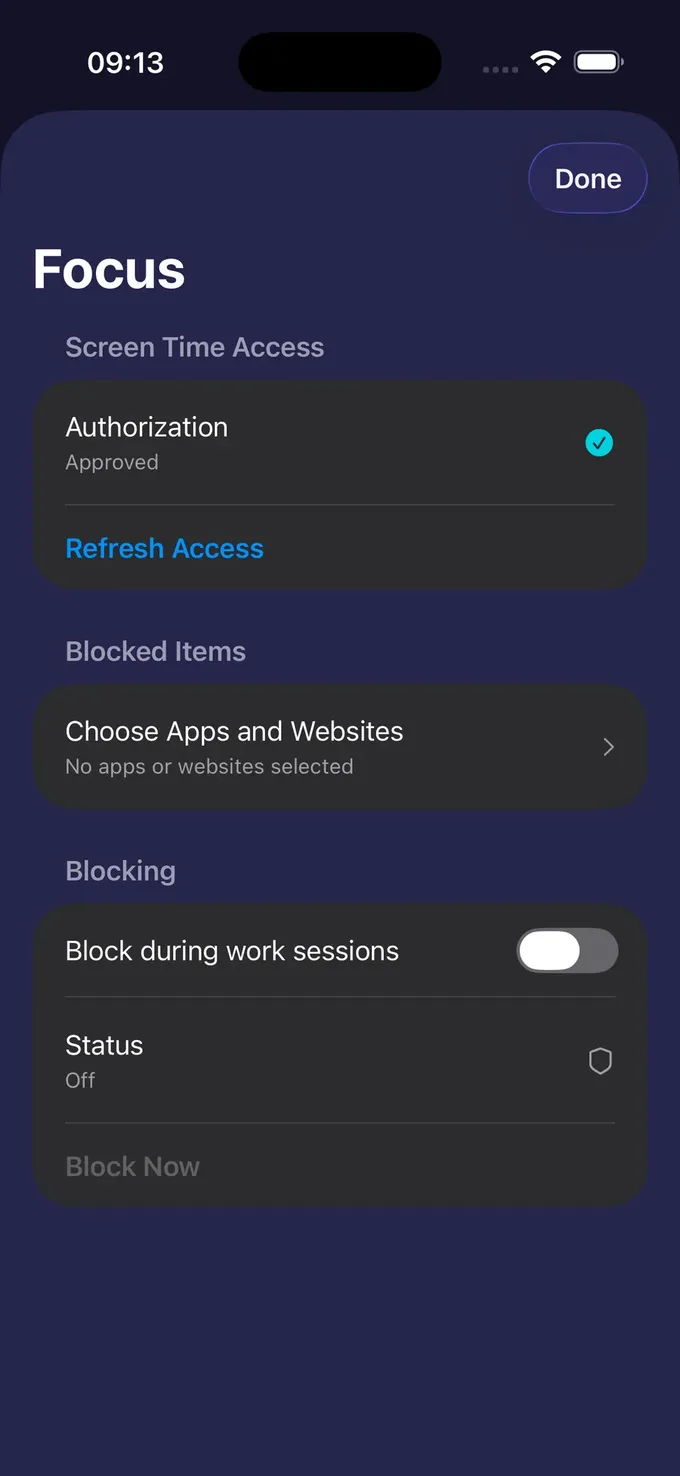
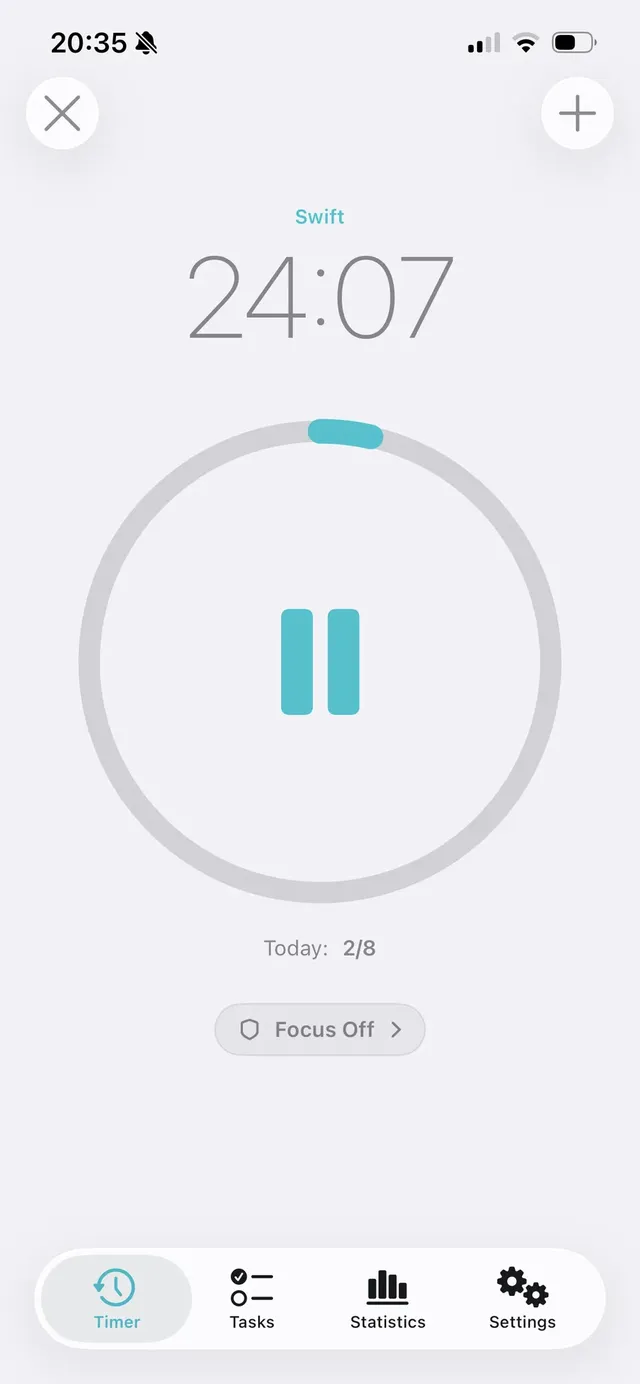
In Tasker, tap Focus on the timer screen and allow Screen Time access. iOS asks once.
Choose what to block
Pick single apps, whole categories such as Social or Games, and websites.
Turn on blocking for sessions
Switch on "Block during work sessions". From now on every focus session blocks your picks.
Start a session
Start the timer and focus. Need quiet without a timer? Tap "Block now".
The focus blocker is part of Tasker Pro. You can try it with the 3-day free trial.
What you can block
Apps, categories and websites
Block exactly the things that pull you away – and nothing else.
- Single apps such as Instagram, TikTok or YouTube
- Whole categories, e.g. Social, Games or Entertainment
- Websites in Safari and other browsers
- Blocking during work sessions, or “Block now” on demand
Built on Screen Time
Private by design
iOS hands Tasker private tokens instead of app names. Tasker can ask iOS to block them, but it never sees which apps they are, your Screen Time reports or your browsing.
- No account, no analytics, no ads
- You can withdraw Screen Time access any time in Settings
- The blocking itself is done by iOS on your iPhone
Tasker or Screen Time App Limits?
iOS already has App Limits in Settings › Screen Time. They are great for a daily budget ("one hour of TikTok a day"), but they don't know when you are working: the limit applies whether you are studying or relaxing, and "Ignore Limit" is one tap away.
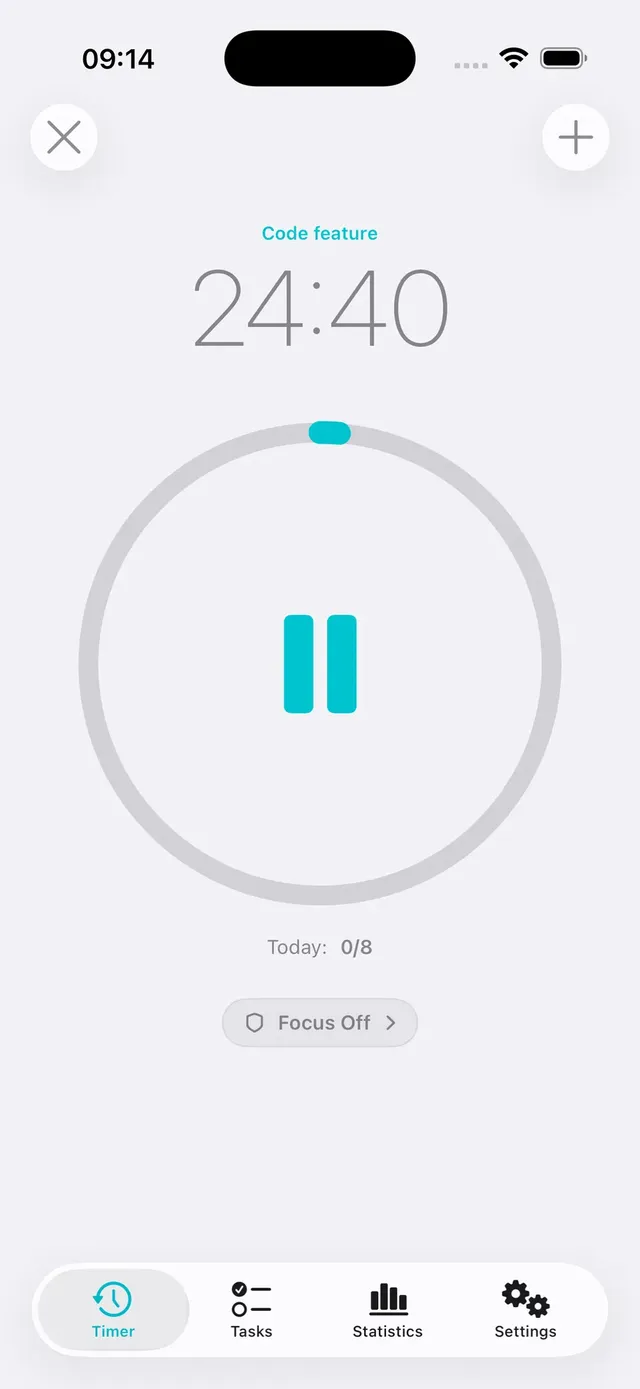
Tasker ties blocking to your focus sessions instead. The apps are closed while the Pomodoro runs and available again on your break, so blocking feels like part of the rhythm rather than a punishment. You can use both: App Limits for your daily budget, Tasker for deep work.
App blocker questions
Can I block apps on iPhone without an app?
Yes – Screen Time in Settings has App Limits and Downtime. They work for daily limits, but anyone can tap "Ignore Limit", and they don't follow your work sessions. Tasker connects blocking to a Pomodoro timer.
Can Tasker block websites too?
Yes. In the focus blocker you can add websites as well as apps and app categories.
Is the app blocker free?
The focus blocker is part of Tasker Pro (monthly with a 3-day free trial, or a one-time lifetime purchase). The Pomodoro timer itself is free.
Can Tasker see which apps I use?
No. Screen Time gives Tasker anonymous tokens for the apps you pick. Tasker can only ask iOS to block them; it never sees app names, usage or browsing activity.
Does it work on iPad?
Yes, Tasker runs on iPhone and iPad with iOS 17.6 or later.
Guides
Focus guides
The Pomodoro technique, blocking iPhone distractions and beating procrastination.
How to Block Apps on iPhone: 4 Ways That Actually Work
You can block apps on iPhone without installing anything: Screen Time lets you set App Limits and Downtime, and Focus modes can hide apps and silence…
ReadThe Pomodoro Technique: How It Works and How to Start Today
The Pomodoro technique is a simple time-management method: you work on one task for 25 minutes, take a 5-minute break, and after four rounds take a l…
ReadYour next 25 minutes can be your best ones.
Pick a task, start a session and let Tasker keep distracting apps closed. Free to start, no account.
Tasker is available for iPhone, iPad and Apple Watch.